
Multiple tabs
One search often leads to another, and you might want to keep one or more sets of search results open while performing more searches. That’s when you use multiple tabs.
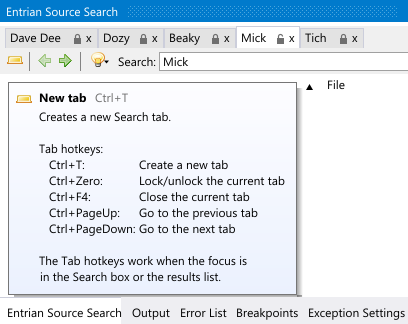
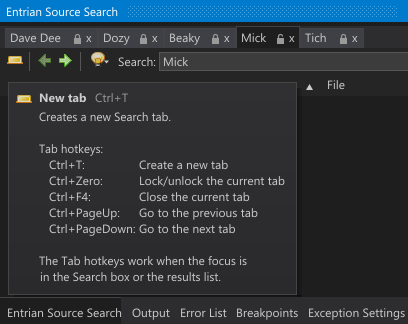
The New tab button creates a new tab. If you hover over that button, you’ll see the shortcut keys for working with tabs:
Searching in a new tab
When you want to search in a new tab, there are two ways to do it:
1. If you’re in the Visual Studio editor, wanting to search for a selected word or phrase, double-tap Alt+= (or whatever hotkey you’ve configured for Entrian Source Search) to search in a new tab.
Note that this double-tap keystroke means you don’t need to think about it in advance - if you hit Alt+=, then realize you wanted to keep your previous results, you can just hit it again and your previous results will be resurrected and the new search moved to a new tab. The tooltip for the Search box reminds you how this works:


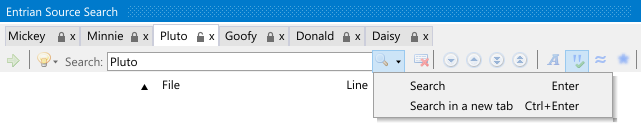
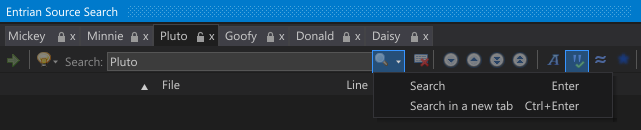
2. To search in a new tab when you’re typing a query into the Entrian Source Search query box, you’d normally hit Enter to run the search. Instead, hit Ctrl+Enter to open a new tab for the search. There’s a dropdown on the Search button to remind you about this:
Locking tabs
Sometimes you’ll want to keep a set of results around for a while. That’s when you lock the tab - locking makes a tab read-only, so you can’t accidentally overwrite the results with another search. Click the Lock icon or press Ctrl+Zero to lock or unlock a tab.
When you’re using a locked tab and you hit Alt+=, your search gets pushed into the next unlocked tab, or into a new tab if all your tabs are locked.
More tab-related goodness
- Left-clicking a tab’s X button closes the tab.
- Middle-clicking anywhere in a tab closes the tab.
- Double-clicking anywhere in the area to the right of the tabs creates a new tab.
- The tabs only take up screen real estate when you have more than one of them; they are hidden when you don’t have multiple tabs.